
Guide
Run employee service and HR workflows
Work with scoped employee records, jobs, cases, and lifecycle activity.
Demo baseline · November 13, 2026Use the correct workplace surface
In the Human resources workspace, confirm your tenant and HR scope before selecting a person or case. Employee self-service and HR agent views have different permissions. Review applicable privacy controls before adding attachments or sharing a record.
Process a case or lifecycle event
- Identify the employee and current job using the tenant's eligible profile and job lookup. Confirm effective dates and organization.
- Open the appropriate case or workflow. Describe the request with the minimum necessary information and use the provided profile, calendar, or task controls.
- Complete the applicable approvals and linked tasks. For directory or profile provisioning, preview the changes and check the match and effective date before applying.
- Verify the profile/case and related records, then inspect the audit history and the employee-visible status where applicable.
Troubleshoot
Check case type, HR scope, active employee/job relationship and policy if an action or field is unavailable. For provisioning errors, review matching, duplicate identity, effective dates and the last run result. Keep employee details within the authorized escalation channel.
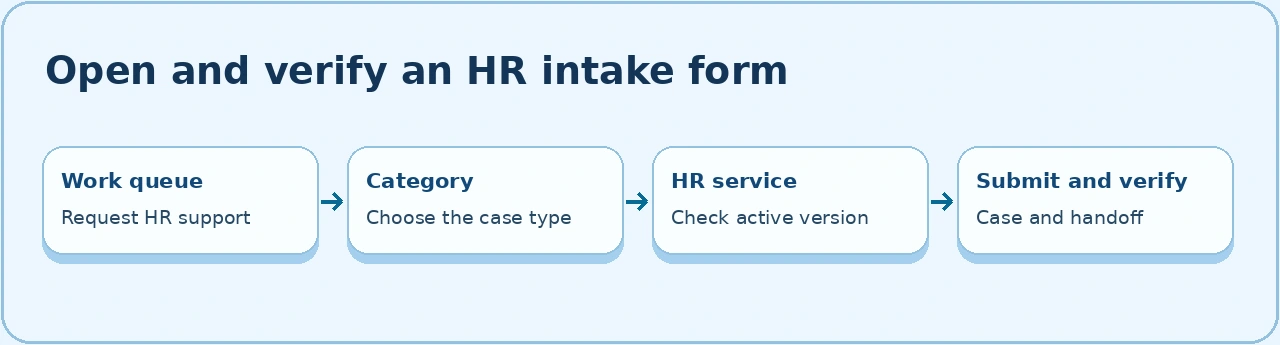
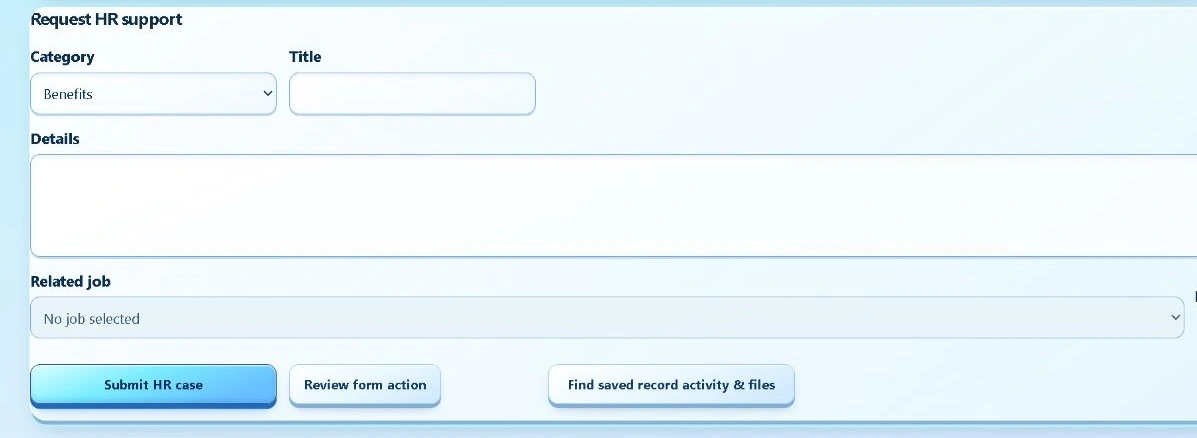
- Open Human resources → Work queue → Request HR support and check whether Category is available. If the queue itself shows a load error, use Retry records after the connection or rate limit clears.
- Select the intended category. If HR services could not load, use Retry HR services. Confirm the category and intake text are still present. Submission is disabled until the catalog loads.
- If the service is missing after the catalog loads, compare its published status, case category and access group in HR service catalog. Reopen the queue after saving a corrected service version.
- Submit a synthetic case, reopen it, and verify the correct version and service commitments. If the case needs other platform work, choose an eligible group and create the handoff. Confirm the linked request number and check its visibility with that group.
- If the intake or handoff fails, record the status of
GET /api/workplace/hr/records,GET /api/workplace/hr/services, or the action request in the restricted support channel. Before retrying a submission, look for an existing case by number or title.