
Guide
Trace a WhatsApp ticket notification
Follow a synthetic message through Qintorava, Twilio, Meta, and the recipient’s WhatsApp conversation.
Demo baseline · November 13, 2026Confirm which message should send
- In Qintorava, open Ticket notifications or the major incident messaging settings for the record you are testing. Identify the exact event, audience, sender, and template. Verify that the channel is enabled and the recipient has consented for the phone on their user record.
- Before retrying, inspect the notification history for that ticket and event. Record the delivery ID and provider status. When the platform already has a provider message ID, use it to investigate the original delivery.
- For an integration test, use a disposable record, a sender configured for testing, and an approved test recipient. Keep provider credentials in Secret Manager.
Verify the sender in Meta Business Suite
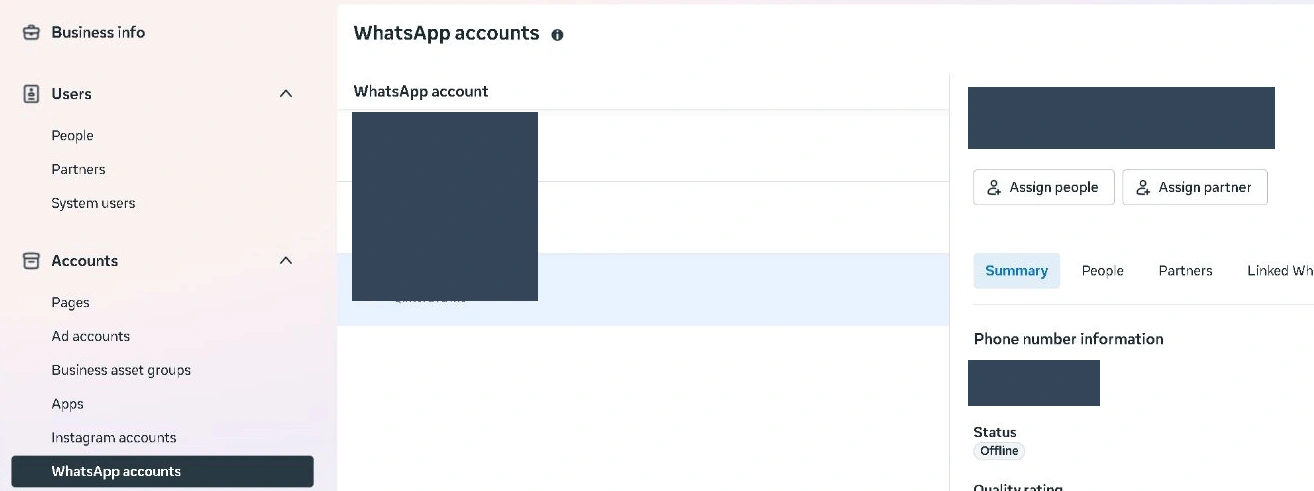
- Open the correct business portfolio. In Settings → Accounts → WhatsApp accounts, select the sender you intend to use and open Summary. Match the sender and display name to the Twilio configuration.
- Check the sender status and relevant account or partner access. If it is offline or pending, check the assigned WhatsApp account and Twilio sender setup before changing Qintorava’s sending rules.
Verify Twilio Sandbox and client delivery
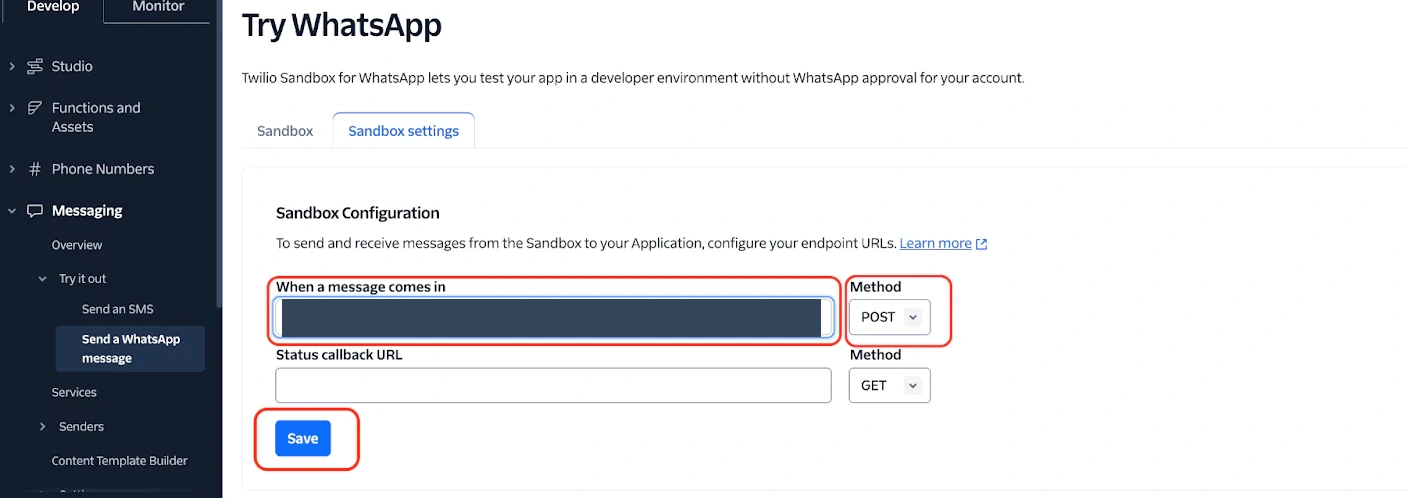
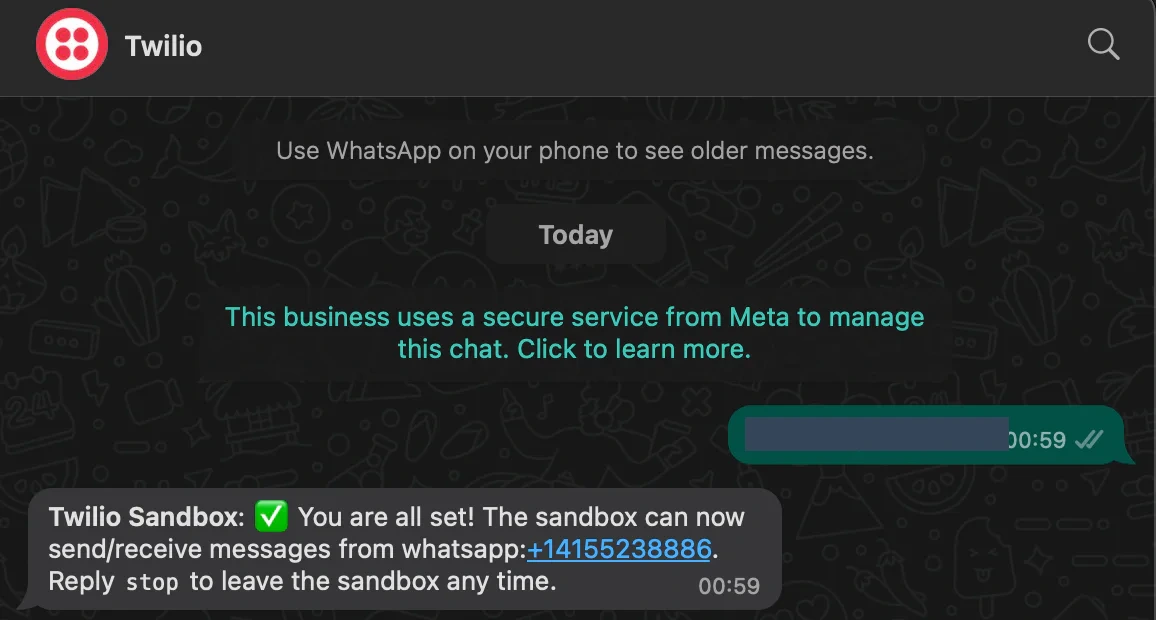
- In Twilio Console, use Try out WhatsApp, or open the legacy Try WhatsApp → Sandbox settings. For a disposable recipient, follow Twilio’s join or phone-linking instructions until WhatsApp displays the confirmation.
- Compare the inbound webhook’s public URL and HTTP method against the tested application route. For the Qintorava handler, use
POSTand the tenant’s canonical HTTPS hostname. The handler verifies the Twilio account and signature using the full URL, including the query string. Only use a sandbox that is configured with matching credentials. - Confirm the join reply in the recipient’s WhatsApp conversation. Then, for a test delivered by your configured Qintorava channel, compare the application receipt and Twilio message record with the recipient’s actual conversation.
Run a two-way ticket test
- In an isolated Qintorava tenant, verify the sandbox sender and account mapping and enable WhatsApp in the ticket composer settings. Set the inbound WhatsApp webhook to
POST /api/integrations/twilio/major-incidents/{tenantId}/inbound-messageon the tenant’s canonical HTTPS origin. Qintorava adds theticket-messagestatus callback with the individual delivery ID during dispatch. - Add the approved sandbox participant as the requester on a synthetic incident. From that participant’s WhatsApp conversation with the sandbox, send the exact incident number and short test text. On the incident, open Activity & files and verify one public comment from WhatsApp. A matched inbound message opens the 24-hour reply window.
- From the incident’s message composer, send one short reply. Compare the delivery in Qintorava with the Twilio message log and the text on the approved device. Save the outcome only after you see the final delivery status and the message on the device. If the conversation window has expired, have the participant start a new conversation or use an approved template that your test sender supports.
- From the test device, reply directly to the Qintorava message. Verify that the inbound reply appears once on the matching incident. Record the timestamp and redact phone numbers, account identifiers, message SIDs, and join codes from the screenshots.
For a developer reproducing the composer request with a current authorized test session, reuse the same key for an identical retry. Keep the page on the isolated tenant. This example assumes the participant has already opened the reply window.
const testIncidentId = "REPLACE_WITH_TEST_INCIDENT_UUID";
const key = crypto.randomUUID();
const body = JSON.stringify({
  key,
  channel: "whatsapp",
  body: "Sandbox verification reply",
});
const result = await fetch(
  `/api/records/work_items/${encodeURIComponent(testIncidentId)}/messages`,
  {
    method: "POST",
    credentials: "same-origin",
    headers: { "Content-Type": "application/json" },
    body,
  },
);
if (result.status !== 202) {
  throw new Error(`Composer returned HTTP ${result.status}`);
}
console.log((await result.json()).state);
HTTP 202 records the composer’s acceptance of the request. Check the delivery receipt and device before marking the test delivered.
Isolate the first failure
| Symptom | Next check |
|---|---|
| No Qintorava delivery exists | Verify the event-to-rule match and recipient consent, the active template and visibility, and the channel setting. |
| Twilio rejects the send | Open the provider record. Compare the sender, recipient, approved template and expected template variables. For sandbox tests, check the recipient joined the current sandbox. |
| Provider accepted but delivery stalled | Follow the Twilio message ID to its terminal status. Check the sender’s status in Meta and whether the recipient’s conversation received the test message. |
| Delivery status does not update in Qintorava | Verify the callback’s exact HTTPS URL and method, response code, content type, and message ID. A 403 from the callback can indicate a mismatched account or signature. A 415 indicates the request was not form encoded. |
| An inbound reply does not attach to a ticket | Verify sender mapping, consent, the account, and the active conversation link. Keep the raw message body and contact details out of shared troubleshooting material. |
See the verification matrix for observed results and Verify an external integration for the acceptance record. See Twilio’s Sandbox guide and outbound status reference for provider setup and receipts.