
Reconcile an uncertain ERP purchase order
Verify whether the original submission succeeded and record the provider reference without sending a duplicate order.
Demo baseline · November 13, 2026Before you begin
Use a platform administrator with the HAM procurement capability enabled. For reconciliation, confirm the order state is submission_unknown and the linked active ERP integration is ready. For a sandbox test, use a Qintorava order saved for an approved ERP test tenant and a sandbox-only supplier, item and receiving location.
Configure the lookup
| Field | Example and requirement |
|---|---|
| Reconciliation path | An approved read-only HTTPS path on the configured origin, such as /orders/by-request/{orderId}. The platform substitutes the original Qintorava order UUID. |
| Reconciliation key path | A response property such as data.requestId. Its value must match the original UUID. |
| Reference path | A response property such as data.orderNumber. The result must provide a nonempty provider reference. |
| Credential and test path | Use the ERP integration's approved secret reference and protected test endpoint. Verify the read-only lookup and its response mapping in the intended scope. |
Reconcile and verify
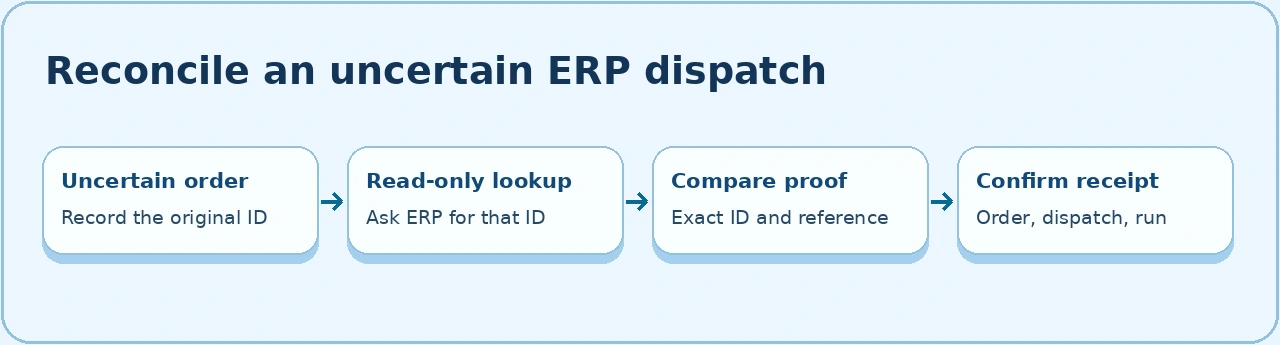
In an environment that exposes the reconciliation route, open the order and use the reconciliation action for uncertain delivery. The application calls the provider's lookup with GET. When the provider response proves the original UUID and supplies a reference, the saved order moves to submitted_to_erp and records the reference. Verify the supplier audit and linked automation run, if present. Confirm receiving can proceed through its normal gates.
Verify the route and provider response
The operation is POST /api/purchase-orders/{id}/reconcile. An unauthenticated 401 confirms the request reached the application’s session gate. If the gateway reports that the request is undefined, compare the active gateway config with the published API contract and gateway release instructions. An authenticated 404 for an unknown UUID comes from the order lookup. A 409 means the order or the provider evidence needs review.
Run the sandbox acceptance check
- Confirm that the connector’s submit and lookup endpoints target the approved ERP test tenant. Use a synthetic order in the isolated tenant’s normal order workflow. The application rejects external actions on orders marked with a demo dataset. Confirm the provider accepts the original Qintorava order UUID as the external key and returns that same key and its own order reference. Keep the scoped credentials in Secret Manager.
- Request independent approval of the synthetic order and its connector mapping, then submit the approved dispatch. In the ERP sandbox, search using the original external key and verify one provider order. Record the order, dispatch and automation run states in Qintorava.
- If the sandbox supports controlled loss of acknowledgement, submit an approved synthetic order under that condition. Confirm Qintorava records
submission_unknown. If the ERP returns a mismatched key or no reference, verify that the order stays in that state and the provider order count is unchanged. - Restore the lookup that returns the exact original key and provider reference. Reconcile that same order. Verify that the order, dispatch and automation run reflect the successful outcome, and search again in the sandbox to confirm a single provider order for the key.
- Retain a redacted provider order screenshot, the final Qintorava states, and a timestamped receipt. See the verification matrix for the outcomes already captured.
If reconciliation is rejected
An HTTP error, mismatched UUID, empty reference, or stale configuration leaves the outcome unconfirmed. Compare the original UUID, endpoint permissions, lookup mapping, and provider record. Refresh after any order or integration edit. If the provider cannot establish the result, investigate the original request with the ERP owner before considering a new order. See the purchase order field reference.